 SPACE256
Open System Settings › General › Storage and the bar is often dominated by a grey block called System Data. On the Mac this site’s city comes from, it was 194.6 GB. Storage settings won’t tell you what is inside it, and Finder hides most of it. Here is what it usually is.
What counts as System Data
System Data is not one folder. It is everything macOS can’t attribute to one of the named categories (Applications, Documents, Photos, Mail, Developer and so on). That typically includes:
- Caches that apps keep in your Library, from browsers to design tools to package managers.
- Logs and diagnostic reports, which are small one by one but pile up over years.
- Time Machine local snapshots, kept on your startup disk so you can restore recent files even when your backup disk isn’t connected.
- Virtual machine and container disks, such as Docker Desktop’s disk image, which can hold tens of gigabytes in a single file.
- App support data that doesn’t belong to a document type: databases, indexes, downloaded assets, and model files of apps that keep them in their containers.
- Swap and sleep files that macOS uses for memory.
Because it is a catch-all, two Macs with the same System Data size can have completely different things inside it.
Why it grows
Most of it grows quietly. Caches have no fixed limit. Snapshots come and go with Time Machine. A Docker disk image grows as you pull images and build, and doesn’t shrink on its own when you delete them. Apps you uninstalled by dragging them to the Trash often leave their support data behind, and that data now has no app to be attributed to, so it lands in System Data.
What macOS frees by itself
Some of it is purgeable: macOS removes it when the disk runs low. Local snapshots are the main example; macOS deletes them as space is needed. That is why the free space Finder shows can be larger than what Storage settings suggests, and why the System Data figure can change from one day to the next without you doing anything.
tmutil listlocalsnapshots /How to shrink it safely
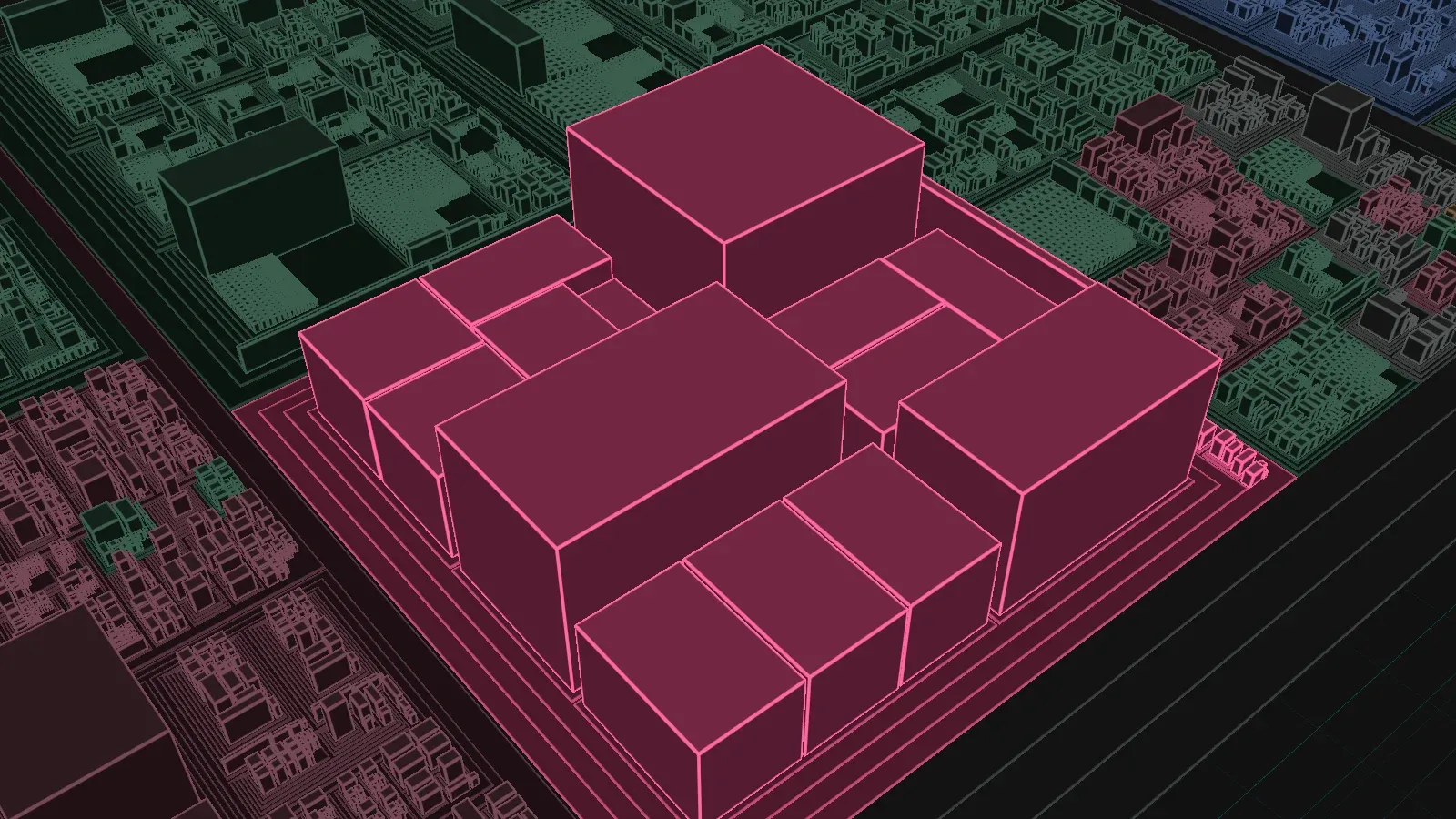
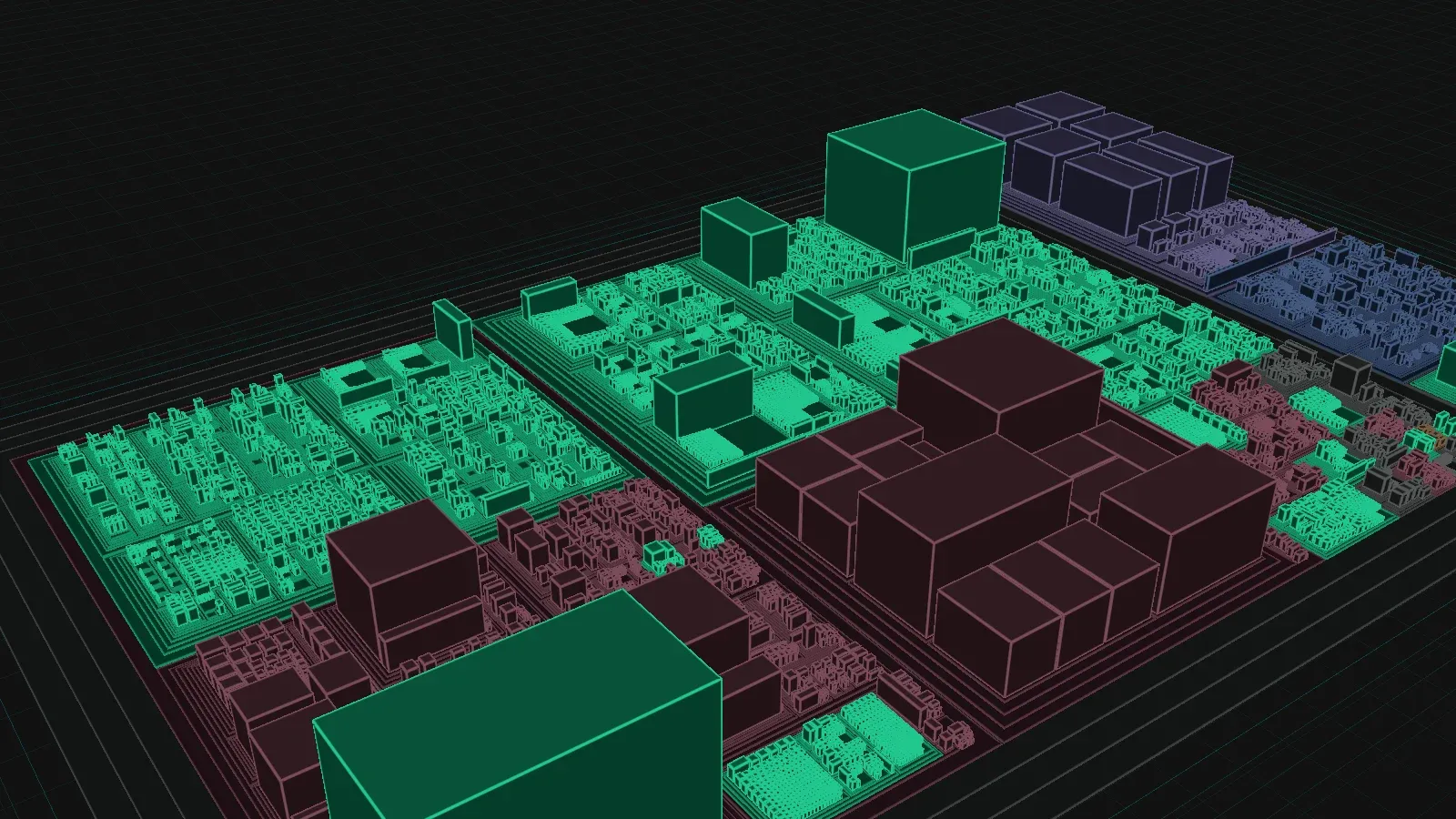
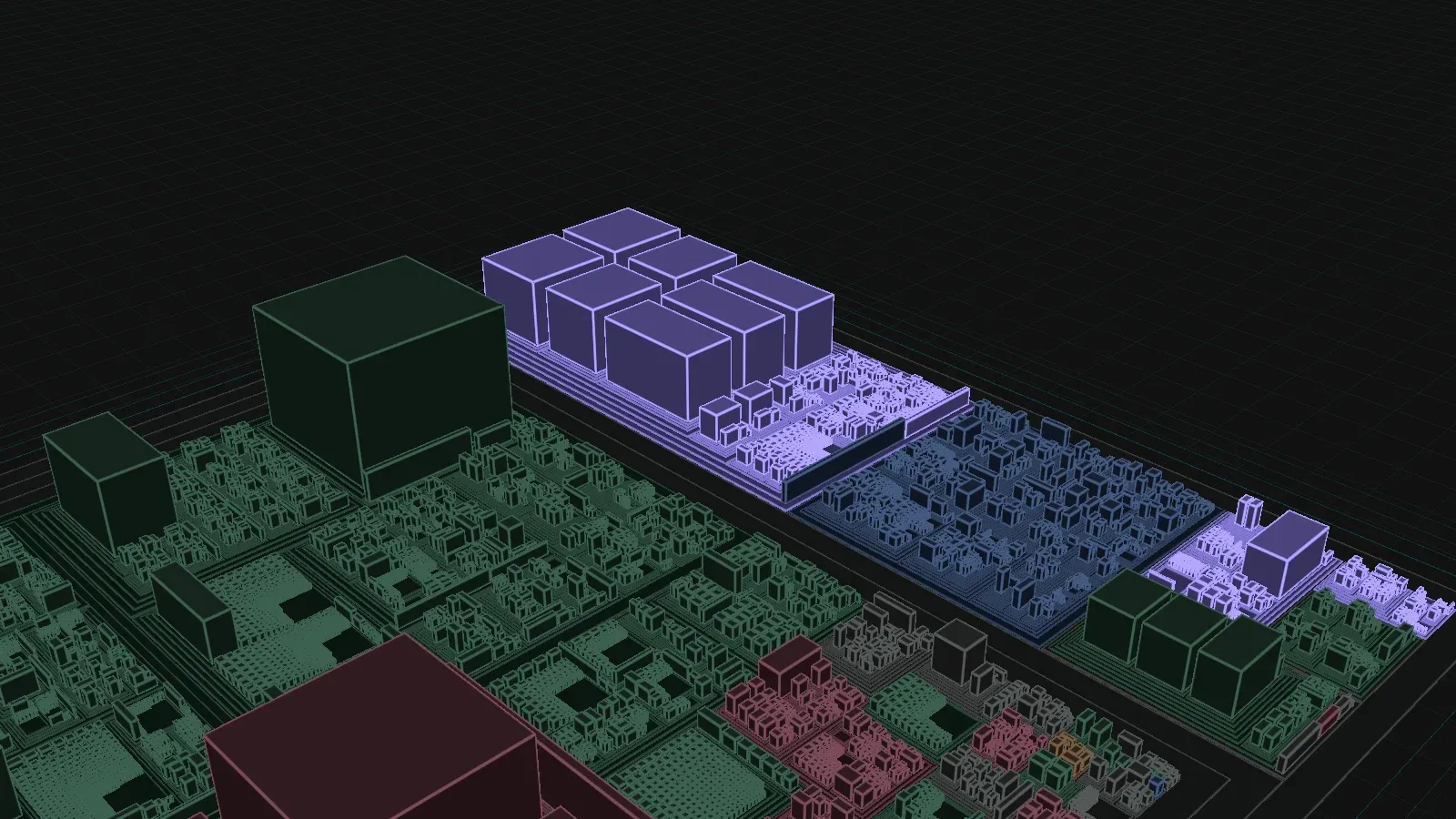
- Find out what it is first. Deleting things you can’t name is how people break apps and lose data. SPACE256 reads System Data, splits it into parts you recognize, and tells you which app each part belongs to.
- Start with what rebuilds itself. Caches and build data come back when needed; they are the safest space to reclaim.
- Use each tool’s own cleanup. Docker’s disk image can shrink once Docker releases the space that
docker system prunefrees inside it; Xcode’s simulators are managed in its Devices window. Deleting those files by hand can destroy containers, volumes or app data. - Leave system locations alone. Don’t delete files in
/System,/private/varor/Libraryby hand. If something there is large, it is almost always something macOS manages, such as swap or snapshots.
The short version
System Data is a label, not a problem in itself. The space is usually caches, snapshots, virtual disks and leftovers from apps. Once you can see which is which, most of it can be reclaimed safely, and the rest is better left to the app that owns it.